
Watch the full walkthrough in Loom
Before you change anything
Learner Controls settings apply to every member in your account. Managers, members, and lower-level admins cannot override them from anywhere else in Empath, so change them for a reason tied to the training outcome you want, not because a default is annoying.
Only a top-level admin can open the Learner Controls tab (watch at 0:18). If you are a regular admin, you can still open Account Settings and see most of its tabs, but Learner Controls does not appear. If you do not see the tab, you do not have the access required. Ask a top-level admin on your account to make the change.
The tab is restricted because these settings affect the whole account. In larger accounts with several admins and managers, open access would let people flip settings back and forth without realizing they affect everyone.
Open Learner Controls
- In the top navigation, select Admin.
- Under Company in the left menu, select Account Settings.
- Select the Learner Controls tab.
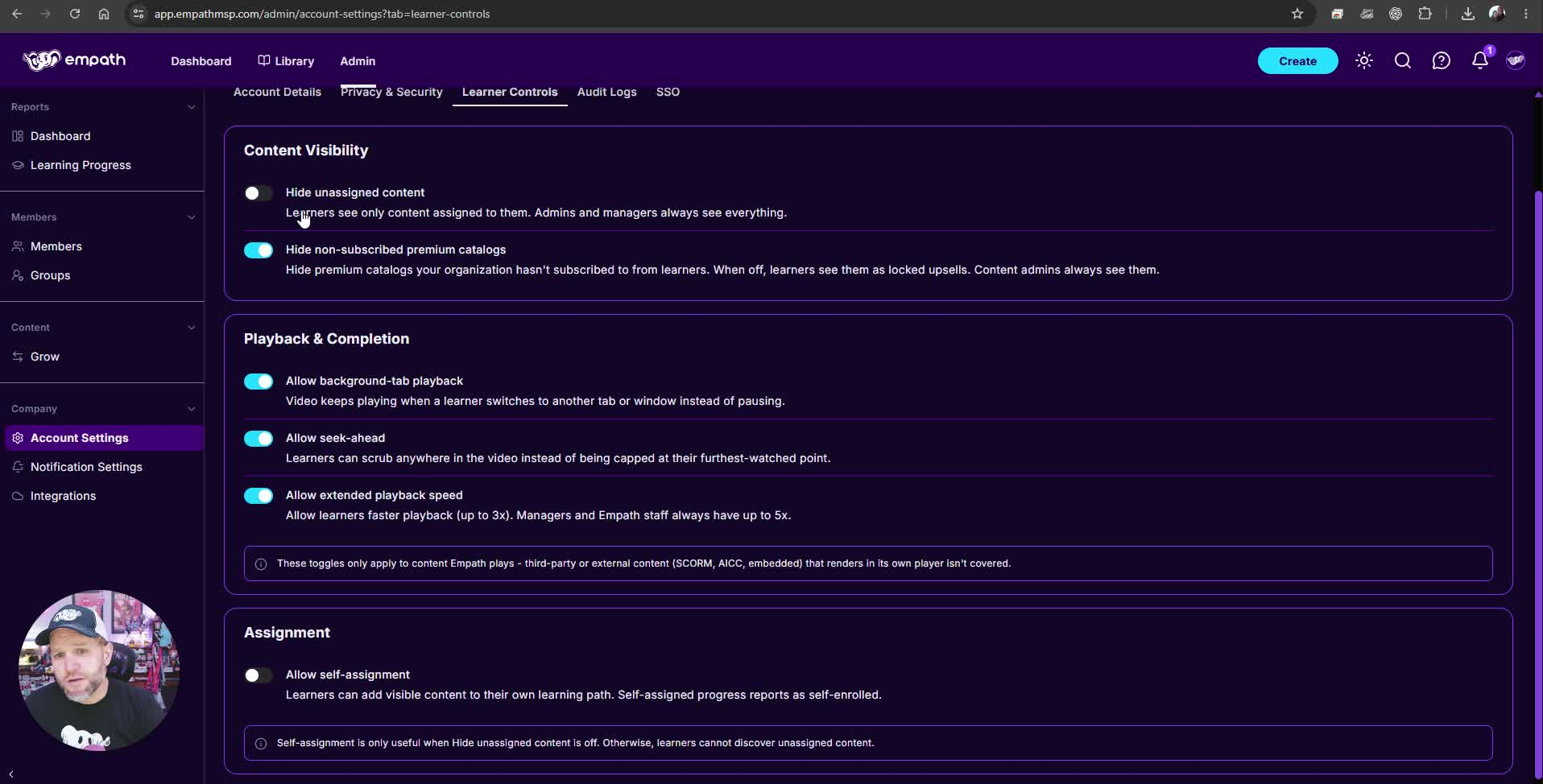
The toggle positions in the screenshot are example settings, not recommendations.
How changes save
Each toggle saves the moment you switch it. There is no Save button and no confirmation message, so the switch moving is the only on-screen sign that the change took effect. A member who already has a video open may need to reload it before the change applies. Changes are recorded in the audit log. See [LINK: Accessing and Using the Activity/Audit Log in Empath Admin Panel].
What each setting does
The tab has three cards: Content Visibility, Playback & Completion, and Assignment. All six settings are off by default, so leaving everything off keeps Empath behaving as it always has.
Hide unassigned content
Off by default. When on, members see only content that has been assigned to them. Admins and managers always see everything. This setting affects members most, because members are the only role that cannot assign content to themselves by default.
When off, members can see all content regardless of assignment.
Empath recommendation: larger accounts and accounts with complex training assignments will usually want this on.
Hide non-subscribed premium catalogs
Off by default. Empath has several catalogs. Some are included with your Empath license and some cost extra. When this is on, premium catalogs your organization has not subscribed to are hidden from members. When it is off, members see them as locked upsells. Content admins always see them either way.
Empath recommendation: in most cases, turn this on.
Playback and Completion: which content is affected
The three playback settings apply only to content Empath plays in its own player. That is content Empath creates, or curates and publishes or embeds on your behalf.
They do not override third-party SCORM or AICC content, or most embedded content such as YouTube. Those players have their own controls and rules.
Allow background-tab playback
Off by default. When a member clicks out of the tab, minimizes the browser, or otherwise loses focus on the lesson, the video and audio stop. This default exists so that training is structured and protected: the member has to pay attention to the lesson they are taking.
When on, video and audio keep playing after the member switches tabs or minimizes the browser.
Some third-party SCORM packages carry their own rules that this setting cannot change. These are typically workplace safety, HR, and state-mandated courses, and they usually show a banner saying the course must be completed in one uninterrupted sitting.
Allow seek-ahead
Off by default. Members cannot scrub forward past the furthest point they have already watched.
When on, members can scrub anywhere in the video. This lets a member skip to near the end of a video without watching it, so turn it on deliberately.
Allow extended playback speed
Off by default, which caps members at 2x. When on, members can play video at up to 3x. Managers and admins always have up to 5x.
Empath recommendation: in our experience onboarding and training partners, speeds above about 2.5x make content hard to follow and hurt retention. This is our judgment, not a measured product limit. Because this setting allows 3x, turning it on lets members go past that point.
Allow self-assignment
Off by default. With self-assignment off, a member cannot start a course or pathway until they request it and a manager assigns it. If a member watches content that is not assigned to them, their progress is not tracked anywhere, so they have no record that they took it, and they cannot take or pass quizzes. That can stop them from moving forward in the content.
When on, members can add any content they can see to their own learning path without manager approval. Self-assigned progress reports as self-enrolled. Content that a member does not assign to themselves is still not tracked and its quizzes are still unavailable. This setting removes the approval step, not the assignment requirement.
Self-assignment only helps when Hide unassigned content is off. If Hide unassigned content is on, members cannot see unassigned content to add it.
Empath recommendation: if your goal is to manage training toward an outcome, leave self-assignment off. Turn it on when you specifically want self-service learning.
For what members see when they open unassigned content, see What happens if I take a course without being assigned?
If a setting does not behave as expected
- I cannot see the Learner Controls tab. The tab appears only for top-level admins. Ask a top-level admin on your account to open it or make the change.
- Members cannot find content they should be able to add to their own learning path. Check whether Hide unassigned content is on. With it on, members cannot see unassigned content, so Allow self-assignment has nothing to act on.
- A video does not follow a playback setting. Check whether the lesson is SCORM, AICC, or embedded content such as YouTube. These use their own players, and the playback settings do not override them. A course that says it must be completed in one sitting keeps that rule even with background-tab playback on.
- A member says their progress or quiz did not count. Unassigned content is not tracked, and its quizzes are unavailable, whatever these settings are. Assign the content to the member or have them request it. See [LINK: How Do I Request Access to a Course in Empath?].
Get help or ask for another control
If someone in your organization can access Empath, select the question mark icon in the top navigation to open the in-app chat bubble.
If you cannot access Empath at all, email support@empathmsp.com.
Include the setting you changed, what you expected, what happened instead, the affected member's email address, and a screenshot or recording.
To ask for a learner control that is not on this tab, select the question mark icon in the top navigation, then Request a Feature.