
Loom video: How to log in to Empath
What you need- An Empath account created for your email address. Empath is passwordless for every sign-in method, so there is no password to set or reset.
- For the email link: access to the inbox for the address on your Empath account.
- For Microsoft: a Microsoft work account that uses the same email address as your Empath account.
- For Google: a Google Workspace account that uses the same email address as your Empath account. Gmail accounts are not supported.
Your organization's own Microsoft or Google sign-in settings take precedence over this article, including any extra authentication steps they require.
Choose a sign-in methodThe login page has an email field and buttons for Microsoft and Google. Empath recommends Microsoft or Google sign-in for daily use. The email link works with the email address on any Empath account. Organizations that require SAML SSO can request it; see SAML SSO below.
Log in1. Open the login page
- Go to
empathmsp.comand select the log in button in the top navigation. - Empath takes you to the login page at
app.empathmsp.com/login.
Bookmark app.empathmsp.com/login. Bookmarks to older Empath login pages may no longer work.
2. Sign in with an email link
- On the login page, enter the email address on your Empath account.
- Select Continue. Empath tells you to check your email.
- Open the sign-in email from Empath and select the button that signs you in.
- Empath signs you in, usually on the last page you were viewing.
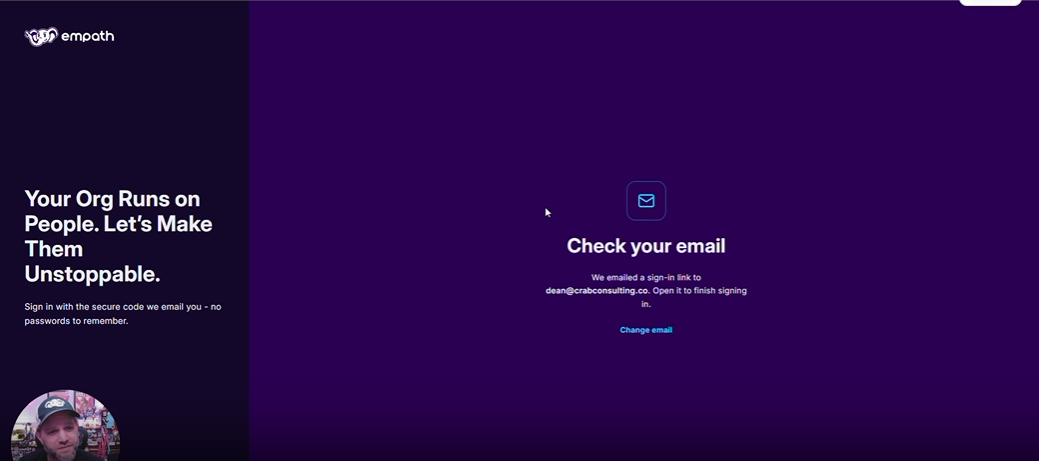
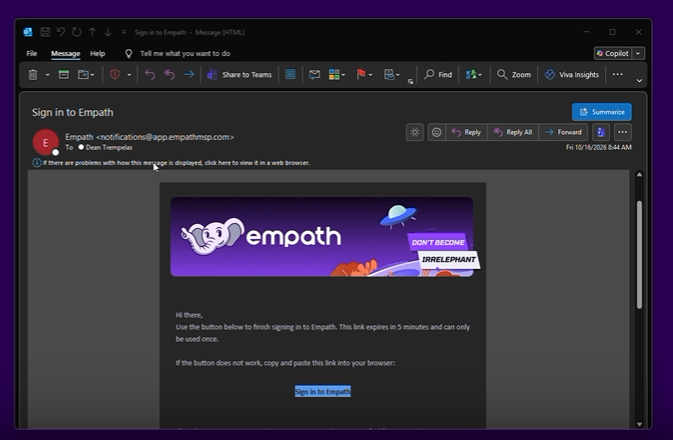
Watch how email sign-in works (2:41)
Email sign-in has no password and, by default, no extra authentication prompt from Empath. The link relies on your mailbox being protected, and how it is protected is up to your organization.
3. Sign in with Microsoft
- On the login page, select the Microsoft button.
- If your browser has saved Microsoft sessions, Microsoft shows a list of accounts. Select the account that matches your Empath email address.
- If you have never signed in to Microsoft in this browser, sign in to your organization's Microsoft account first. If a saved session has expired, select the account and sign in again when Microsoft asks.
- After Microsoft authenticates you, Empath opens.
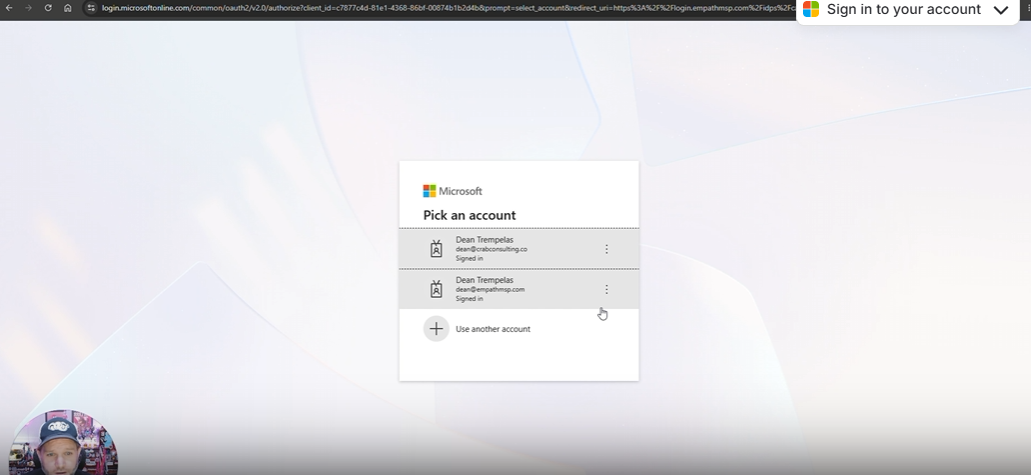
The first time Microsoft sign-in is used with Empath, an Entra admin must approve the Empath app in your Entra tenant. Watch this part (6:07)
4. Sign in with Google
If your organization uses Google Workspace, select the Google button on the login page. The account list and expired-session behavior work the way they do for Microsoft in step 3.
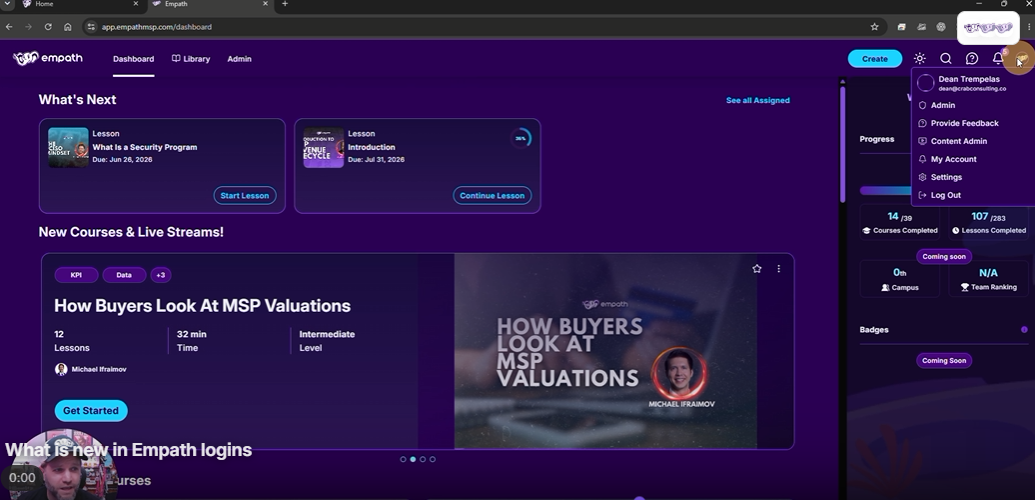
Confirm it workedEmpath opens without returning you to the login page, and the account you signed in with is shown in the app. If it is not the account you meant to use, sign out and return to the login page.
Microsoft and Google sign-in are a form of single sign-on, and they are separate from SAML SSO. Microsoft or Google sign-in is enough for most organizations. Organizations that require SAML SSO can have it enabled at no additional fee.
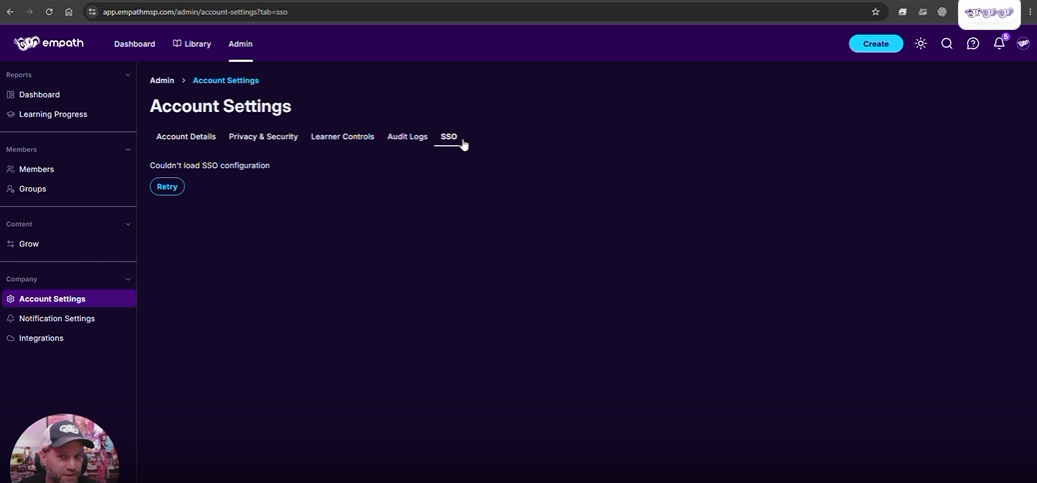
To request SAML SSO, contact Empath using the options under Get help. Setup takes some back and forth between your team and Empath support, including authorizing the Empath app in your Entra tenant. Once SAML SSO is enabled for your organization, an admin sees an SSO setting under account settings in the admin area, where the configuration loads.
Provisioning is not included
As of October 2026, Empath does not have a direct integration for SCIM provisioning. Enabling SAML SSO does not automatically create or remove Empath users. For how to add and remove users, see [PROVISIONING ARTICLE: Dean to confirm which article].
TroubleshootingMicrosoft or Google sign-in fails
Use the email link method in step 2: enter your email address, select Continue, and use the link sent to your inbox. If Microsoft asks for administrator approval, an Entra admin in your organization needs to approve the Empath app (see step 3).
Microsoft shows several accounts
Choose the account that matches the email address on your Empath account. If you chose the wrong one, return to the login page and start again.
The sign-in email does not arrive
Check your spam or junk folder and any email quarantine your organization uses. Not seeing the email does not mean Empath failed to send it; email filtering between Empath and your inbox can block or hide it. Your technical team can use the Comprehensive Domain & Service Whitelist article to allow Empath email and services.
The sign-in email has no button
Display the images in the message. Some email settings, including some Outlook configurations, block external images by default.
Get helpIf someone in your organization can access Empath, use the in-app chat bubble. If you cannot access Empath at all, email support@empathmsp.com.
Include the email address of the person who cannot sign in, the sign-in method they tried, what they expected, what happened, the exact error text, and a screenshot or recording.