Summary
Empath allows Content Admins to rapidly create a complete course by importing an entire YouTube playlist. Each video in the playlist is automatically converted into an individual lesson and assembled into a single course container. This article explains when and why to use playlist imports, how to find the correct YouTube playlist link, how the import process works, and what cleanup and customization is recommended before assigning the course to your team.
What This Feature Is (and Why It Exists)
In Empath, a course is a container that includes:
-
A title and thumbnail
-
A course description
-
Defined skill areas
-
One or more lessons (videos, text, embeds, quizzes)
Many MSPs want to leverage high-quality public content, especially vendor or certification-aligned material, without manually creating dozens of lessons one at a time. The YouTube Playlist Import tool exists to solve exactly that problem.
Instead of importing individual videos one by one, Empath can:
-
Pull an entire YouTube playlist
-
Create one lesson per video
-
Preserve lesson order
-
Automatically assemble everything into a single draft course
This allows you to go from “idea” to “assignable course” in minutes.
Prerequisites
Before you begin, ensure the following:
-
You have the Content Admin role in Empath
-
You can see the Create button in the upper navigation or Content Admin in your profile menu
-
You have access to a YouTube playlist URL (not a single video link)
If you do not have the Content Admin role, you will not be able to create or import courses.
Video Walkthrough Of This KB
Creating a Course from YouTube Playlists in Empath 📚 - Watch Video
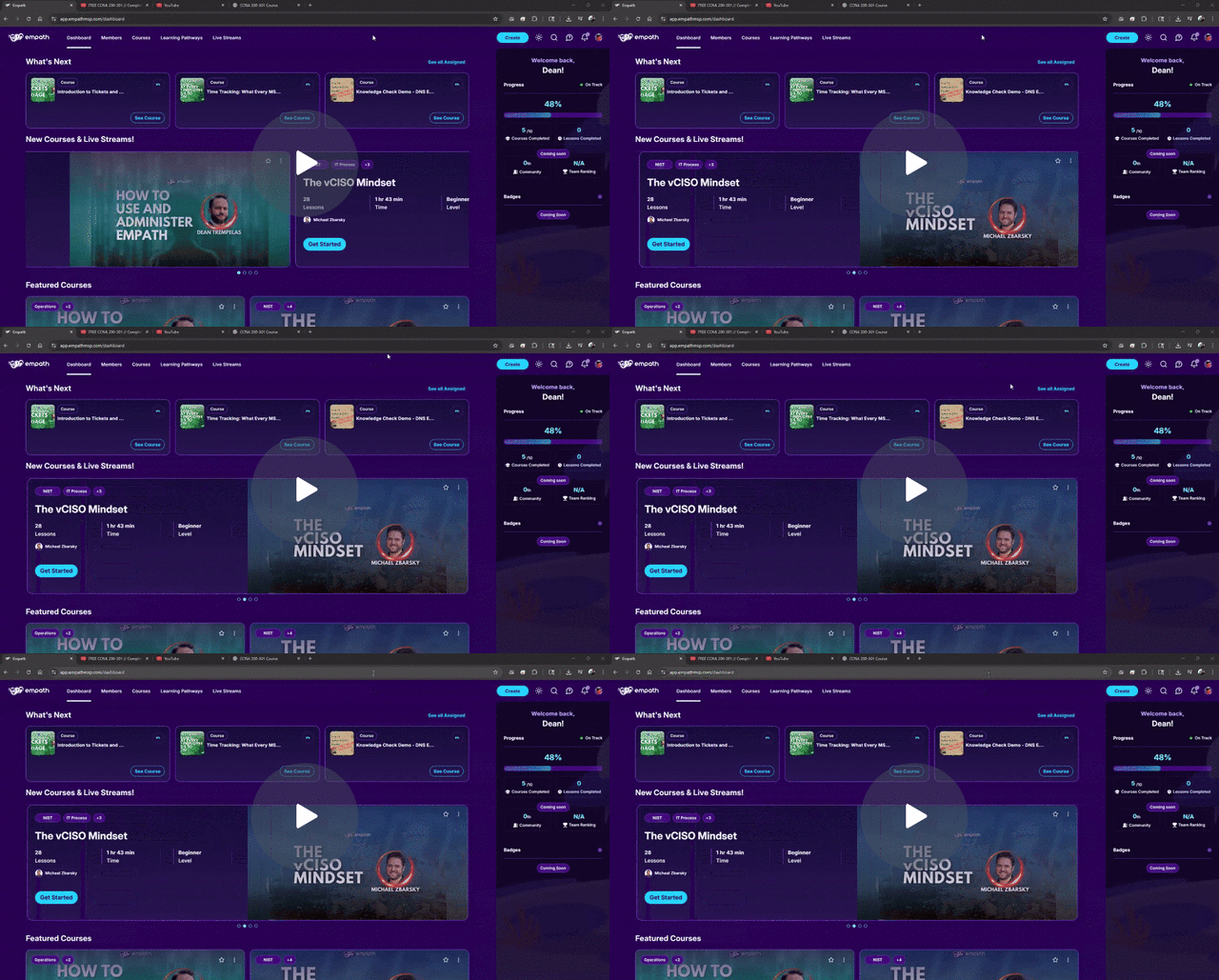
Step-by-Step: Importing a YouTube Playlist as a Course
Step 1: Confirm Content Admin Access
Loom timestamp: ~00:38
You can confirm you have Content Admin access if:
-
You see the Create button in the top navigation
-
OR you see Content Admin in your profile dropdown
If neither is visible, contact your Empath Admin.
Step 2: Start Course Creation
Loom timestamp: ~02:34
-
Click Create
-
Select Course
-
Click Start
This opens the course creation modal.
Step 3: Choose the YouTube Playlist Import Option
Loom timestamp: ~02:56
At the top of the course creation modal:
-
Click Import
-
Select YouTube Playlist
-
You will be prompted to paste a playlist URL
Finding the Correct YouTube Playlist Link
This is the most common point of confusion.
What Will Not Work
-
A single YouTube video URL
-
A channel homepage
-
A “Watch” URL without the word
playlist
What Will Work
-
A YouTube URL that contains the word
playlist -
A page showing multiple videos grouped together
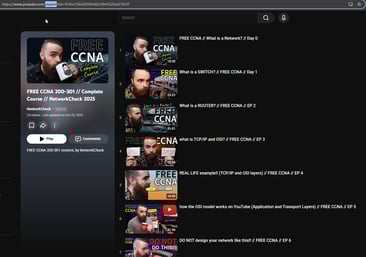
Loom timestamp: ~05:28
To find the correct link:
-
Search YouTube for a course-style playlist
-
Click the playlist title, not an individual video
-
Confirm the URL includes
playlist -
Copy that URL
Bonus: Using Curated Playlists
Empath maintains a running list of commonly used and recommended playlists in the Herd Help Hub.
This can be a good starting point if you are unsure what content to use.
Step 4: Import the Playlist into Empath
Loom timestamp: ~06:07
-
Paste the playlist URL into the Import field
-
Click Import
-
Wait while Empath pulls in the videos
Empath will:
-
Create one lesson per video
-
Preserve the playlist order
-
Populate lesson titles and descriptions from YouTube
Step 5: Review Imported Lessons
Once the import completes, you will see:
-
A list of lessons corresponding to each video
-
Lessons already ordered correctly
At this stage, you can:
-
Add quizzes or knowledge checks
-
Insert your own internal lessons
-
Leave the imported lessons as-is for now
Many partners choose to import first, then iterate later.
Step 6: Clean Up Course Metadata
Loom timestamp: ~07:42
Before publishing, you should review and update:
Course Title
Imported titles often come directly from YouTube and may be overly long. Simplify the title so it is clear and internal-friendly.
Course Thumbnail
A fast option is to:
-
Right-click the YouTube playlist thumbnail
-
Save the image
-
Upload it as the course thumbnail
This does not need to be perfect. Speed matters more than polish early on.
Step 7: Add a Course Description and Skills
Loom timestamp: ~08:31
Empath strongly recommends adding:
-
A short course description explaining:
-
Who the course is for
-
Why it exists
-
What learners should expect
-
-
Skill areas with sub-skills
Many partners use AI tools to accelerate this step. A simple prompt like:
“Create an Empath course description and three skill areas with sub-skills for a CCNA 200-301 YouTube playlist.”
is usually sufficient.
Adding context helps learners understand:
-
Why the course was assigned
-
Whether it is exam prep, practical reinforcement, or exploratory learning
Step 8: Set Level, Roles, and Tags
Loom timestamp: ~10:34
Before saving:
-
Set an appropriate course level (Beginner, Intermediate, Advanced)
-
Assign relevant roles (Support Engineer, Network Engineer, Project Engineer, etc.)
-
Add tags to improve discoverability
Step 9: Save, Preview, and Publish
Loom timestamps: ~11:13 and ~12:04
-
Save the course as a Draft
-
Preview it to confirm:
-
Lessons are present
-
Metadata looks correct
-
-
Unflag the course to publish it internally
-
Save again
Once published, the course becomes assignable.
Step 10: Assign the Course to Employees
Loom timestamp: ~12:47
You can now:
-
Assign the course like any other Empath course
-
Set due dates
-
Track progress and completion
Advanced Tip: Create Your Own Playlists
You are not limited to pre-existing playlists.
You can:
-
Create your own YouTube playlist
-
Mix videos from multiple channels
-
Import that playlist into Empath using the same process
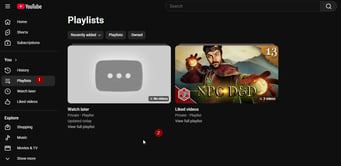
Loom timestamp: ~14:04
This is a powerful way to curate content without hosting videos yourself.
Common Cleanup and Follow-Up Tasks
After import, you may eventually want to:
-
Edit lesson descriptions
-
Remove unnecessary YouTube metadata
-
Add internal commentary lessons
-
Insert quizzes or knowledge checks
None of this is required upfront. The goal is momentum.
Troubleshooting and Support
If you encounter issues:
-
Confirm the URL is a playlist link
-
Ensure you have Content Admin permissions
-
Verify the playlist is public
If problems persist, contact support via:
-
The in-app chat bubble