
Video walkthrough: Watch the full walkthrough on Loom (about 6 minutes)
This article covers where to find the tenant-level admin panels. It does not cover how to change settings inside them; other articles cover individual settings.
What you needYou need both the Manager and Admin roles in your tenant. Watch this section (0:35)
If you cannot see the screens described here, your account is missing a role. Ask an existing admin in your tenant to update your roles.
Find the Company section in Admin- In the top navigation bar, click Admin. The bar shows Dashboard, Library, and Admin. The left-hand navigation opens with the admin panels, reports, and dashboards. Watch this step (0:49)
- In the left-hand navigation, go to the Company section. It contains Account Settings, Notification Settings, and Integrations. These are the tenant-level controls, so what you configure here applies to your entire tenant. The other sections, such as Reports, Member Management, and Content Management, are not covered in this article. Watch this step (1:15)
Account Settings
Account Settings holds the core configuration for your tenant. Watch this panel (3:11)
- Tenant name, address, website, time zone, and currency
- Privacy and security settings, such as session policy, IP restrictions, and inactivity settings
- Learner Controls. Read the Learner Controls article in this Knowledge Base before you change anything there.
- Audit Logging
- SAML SSO settings, if SAML SSO is enabled for your tenant
Notification Settings
Notification Settings holds the tenant-wide controls for notifications. Watch this panel (3:57)
You can set global notification policies and lock them. A locked policy applies to your whole organization and overrides individual user settings. Individual users can change only a small subset of notification settings for themselves.
This panel also holds the roll-up digest of notifications and webhook configuration.
Integrations
Integrations is where you configure tenant-level integrations: your ConnectWise PSA integration and the Microsoft Learn integration, which syncs your Microsoft Learn account with Empath. Watch this panel (4:49)
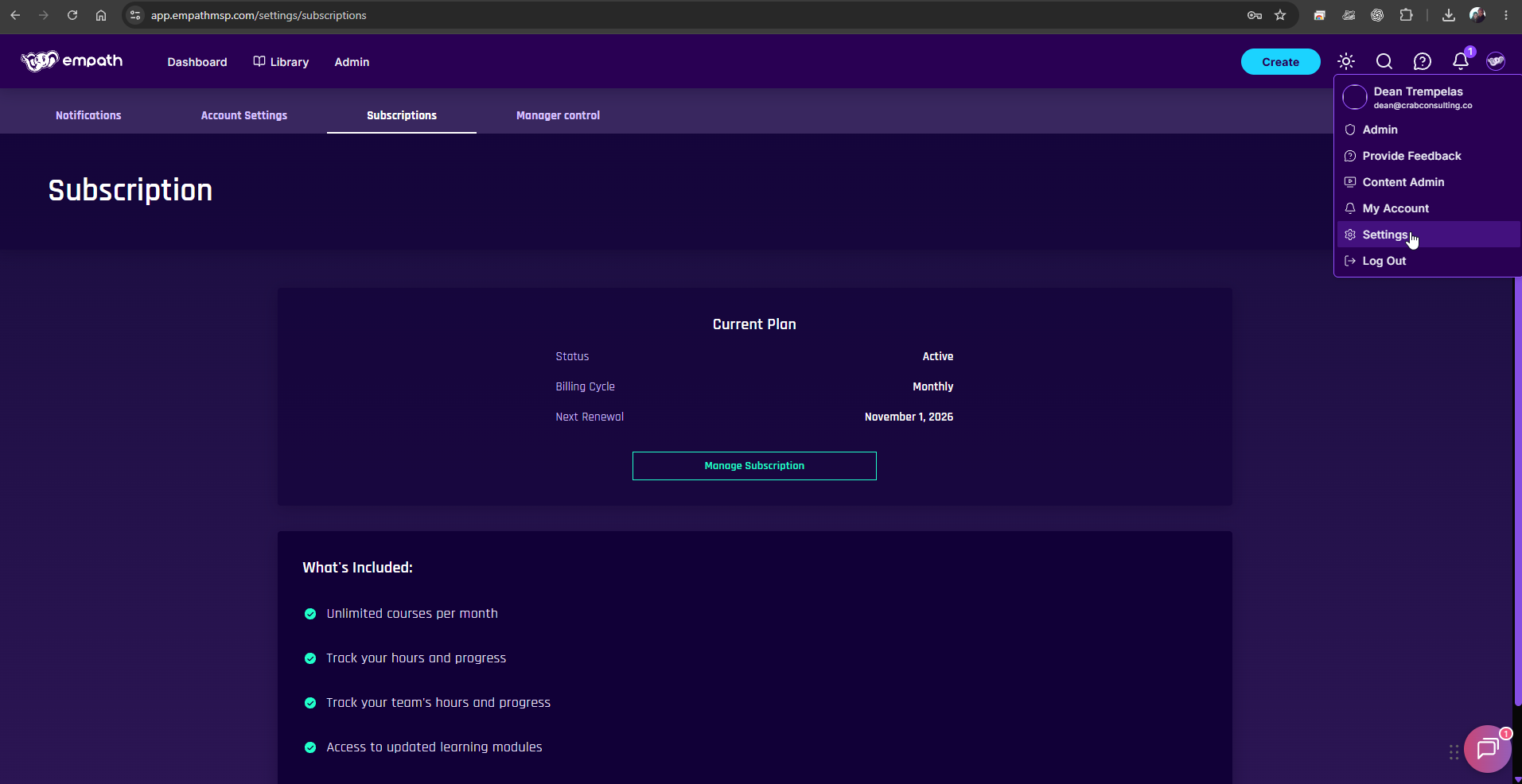
Open your profile menu and you will see three options that lead to different places. Watch this section (1:30)
- Admin is the first option. It opens the same Admin area described above.
- My Account opens the settings for your own user account only, whether you are a member, manager, or admin. It does not open tenant settings.
- Settings opens a mix of screens: live stream notification settings, an Account Settings tab that returns you to the Admin area, and Subscription Management. For tenant-level settings, use Admin instead.
Subscription Management and the billing portal
Subscription Management opens the billing portal, which is a separate system from Empath. The billing portal allows only one user: the primary billing contact who set up your Empath account. That is not the same as being an Admin in Empath. Only admins can see the Subscription Management screen, but being an admin does not give you a login to the billing portal.
You are in the right place when the left-hand navigation shows Account Settings, Notification Settings, and Integrations under Company. If you land on a page that only shows your own profile details, you opened My Account. Go back to the profile menu and choose Admin.
Get helpIf someone in your organization can access Empath, use the in-app chat bubble, or select the question mark icon and open a support request. Watch this section (5:16)
If you cannot access Empath at all, email support@empathmsp.com.
Include your email, which screen you were trying to open, what you expected to see, what you saw instead, and a screenshot or recording.